> ## Documentation Index
> Fetch the complete documentation index at: https://documentation.genieanalyst.com/llms.txt
> Use this file to discover all available pages before exploring further.
# How to Sign Up & Log In to Genie Analyst
Follow these simple steps to create and use your account on Genie Analyst.
## 1. Enter Your Personal Information
First, go to [www.genieanalyst.com/signup](https://www.genieanalyst.com/signup) to begin registration. You will see the Personal Information form.
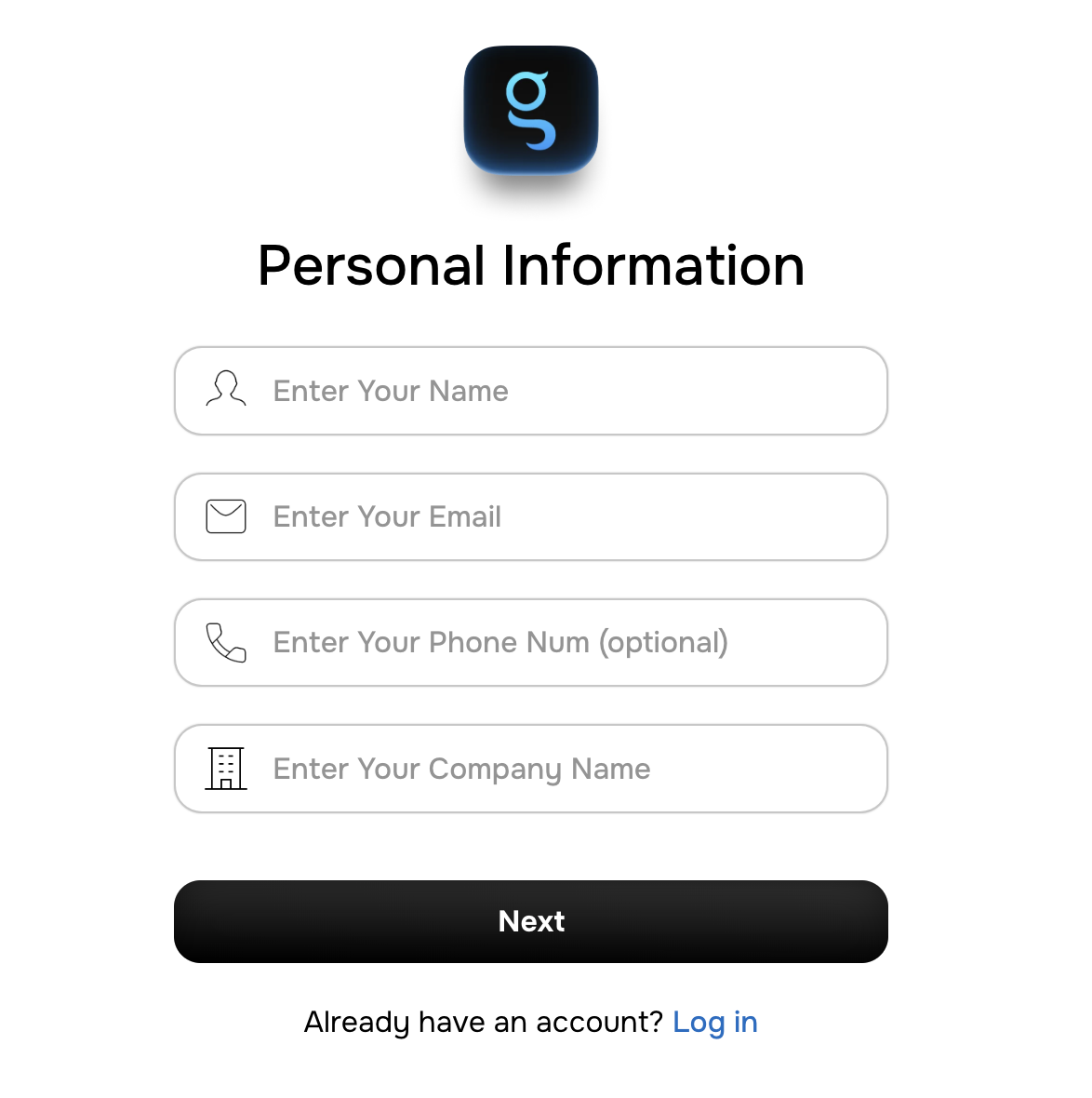 Fill in the following fields in this form:
* **Full Name:** Enter your complete name.
* **Email Address:** Provide your official or work email address.
* **Phone Number:** Enter a valid contact number.
* **Organization Name:** Enter your company or organization name.
Click **“Next”** to continue.
You can skip adding a database during signup. Databases and integrations can be added later from your Genie Analyst Dashboard once your account is active.
## 2. Enter Your Organization & Access Details
In the second step, provide your organization-level information to help Genie tailor your workspace and access permissions.
* **Number of Database Users:** Total users who will connect or manage databases.
* **Number of Non-Database Users:** Users who will use Genie for analytics or reporting only.
* **Sales Person Name:** Enter the name of the sales representative assisting you (if applicable).
* **Role:** Select your role (e.g., Admin, Analyst, Manager, Executive).
Click **“Next”** to continue.
## 3. Data Connection
This step allows you to connect Genie to your organization’s data environment.
* **Select Data Type:** Choose the data source type (e.g., SQL Database, MongoDB, Google Sheets, SAP ERP, etc.).
* **Select Database Schema:** Select the schema or data structure your organization uses.
If you prefer, you can skip this step and add your database later from the Dashboard under “Data Connections.”
Click **“Next”** to complete the signup process.
## 4. Receive Your Secure Password
After completing the signup, Genie automatically generates a strong, secure password for your account.
* This password will be sent to your registered email address immediately after signup.
* It is strongly recommended to change this password after your first login for added security.
## 5. Verify Your Email
Check your inbox for a verification email from Genie Analyst.
* Click **“Verify Account”** to confirm your registration.
* If you don’t receive the email within a few minutes, check your Spam or Promotions folder.
## 6. Log In to Genie Analyst
Once verified:
1. Visit [www.genieanalyst.com/login](https://www.genieanalyst.com/login).
2. Enter your registered email address and the password sent to your inbox.
3. Click **“Log In.”**
## 7. First-Time Setup
When you log in for the first time:
* You’ll be prompted to set a new password for security.
* Complete your profile setup (department, team, and access preferences).
* Review and accept Genie’s Data Privacy Policy and User Agreement.
## 8. Accessing Your Dashboard
Inside the Genie Analyst Dashboard, you can:
* Add or manage databases, vaults, and APIs securely.
* Ask natural-language questions (e.g., “Show me revenue growth by region.”).
* Generate AI-powered reports, dashboards, and insights instantly.
## 9. Forgot Password or Account Issues
If you forget your password:
* Go to the Login Page and click [**“Forgot Password?”**](https://genieanalyst.com/login)
* Enter your email address and follow the reset instructions sent to your inbox.
For additional help, contact [**support@genieanalyst.com**](mailto:support@genieanalyst.com).
## 10. Security Best Practices
* Always change your auto-generated password after your first login.
* Use a strong and unique password.
* Log out after use, especially on shared systems.
* Genie automatically signs you out after a period of inactivity for added security.
Fill in the following fields in this form:
* **Full Name:** Enter your complete name.
* **Email Address:** Provide your official or work email address.
* **Phone Number:** Enter a valid contact number.
* **Organization Name:** Enter your company or organization name.
Click **“Next”** to continue.
You can skip adding a database during signup. Databases and integrations can be added later from your Genie Analyst Dashboard once your account is active.
## 2. Enter Your Organization & Access Details
In the second step, provide your organization-level information to help Genie tailor your workspace and access permissions.
* **Number of Database Users:** Total users who will connect or manage databases.
* **Number of Non-Database Users:** Users who will use Genie for analytics or reporting only.
* **Sales Person Name:** Enter the name of the sales representative assisting you (if applicable).
* **Role:** Select your role (e.g., Admin, Analyst, Manager, Executive).
Click **“Next”** to continue.
## 3. Data Connection
This step allows you to connect Genie to your organization’s data environment.
* **Select Data Type:** Choose the data source type (e.g., SQL Database, MongoDB, Google Sheets, SAP ERP, etc.).
* **Select Database Schema:** Select the schema or data structure your organization uses.
If you prefer, you can skip this step and add your database later from the Dashboard under “Data Connections.”
Click **“Next”** to complete the signup process.
## 4. Receive Your Secure Password
After completing the signup, Genie automatically generates a strong, secure password for your account.
* This password will be sent to your registered email address immediately after signup.
* It is strongly recommended to change this password after your first login for added security.
## 5. Verify Your Email
Check your inbox for a verification email from Genie Analyst.
* Click **“Verify Account”** to confirm your registration.
* If you don’t receive the email within a few minutes, check your Spam or Promotions folder.
## 6. Log In to Genie Analyst
Once verified:
1. Visit [www.genieanalyst.com/login](https://www.genieanalyst.com/login).
2. Enter your registered email address and the password sent to your inbox.
3. Click **“Log In.”**
## 7. First-Time Setup
When you log in for the first time:
* You’ll be prompted to set a new password for security.
* Complete your profile setup (department, team, and access preferences).
* Review and accept Genie’s Data Privacy Policy and User Agreement.
## 8. Accessing Your Dashboard
Inside the Genie Analyst Dashboard, you can:
* Add or manage databases, vaults, and APIs securely.
* Ask natural-language questions (e.g., “Show me revenue growth by region.”).
* Generate AI-powered reports, dashboards, and insights instantly.
## 9. Forgot Password or Account Issues
If you forget your password:
* Go to the Login Page and click [**“Forgot Password?”**](https://genieanalyst.com/login)
* Enter your email address and follow the reset instructions sent to your inbox.
For additional help, contact [**support@genieanalyst.com**](mailto:support@genieanalyst.com).
## 10. Security Best Practices
* Always change your auto-generated password after your first login.
* Use a strong and unique password.
* Log out after use, especially on shared systems.
* Genie automatically signs you out after a period of inactivity for added security.